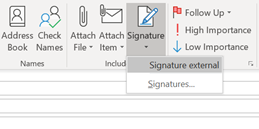


Create an email signature
Step 1: Start Outlook;
Step 2: Choose the Home tab and click on New Email. 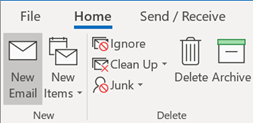
Step 3: Next, click on Email signature. 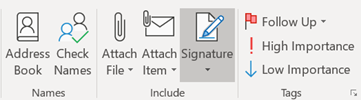
Step 4: Then, choose the email account for which you want to create a signature. 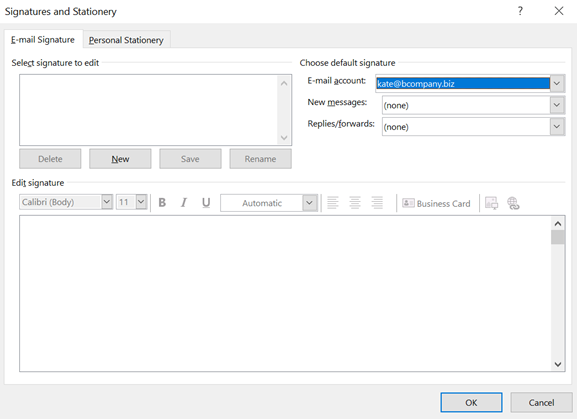
Step 5: Then click on New and give your signature a clear and concise name such as: ‘signature external’.
Step 6: You can then modify your new signature and when done, click Save.
Tip: It is now possible to select a standard signature for new messages and/or answers which will automatically be added to your future emails.
Step 7: Click on OK. From now on, your new signature appear directly each time on opening a new email. 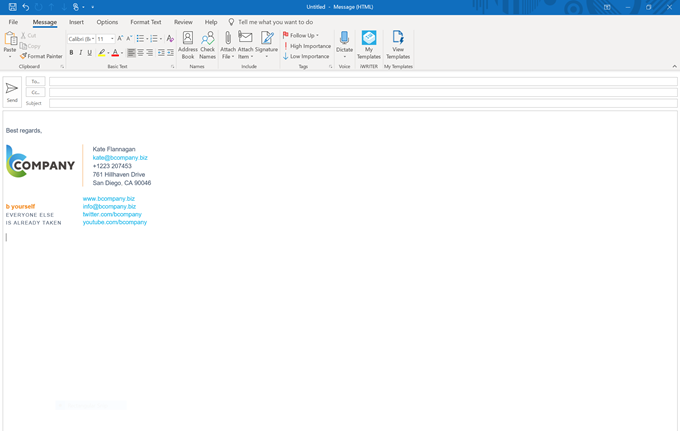
If you haven’t selected a standard signature, you can click on Signature and then select the signature you require.